Analyze License Usage
Important Notice for TestEngine Customers
Starting from ReadyAPI 3.62.0, VirtServer 3.29.0, and TestEngine 1.34.0, SmartBear Product Family has fully deprecated file-based licenses and transitioned to the ID-based SmartBear License Management (SLM) system. As of October 1, 2025, file-based licenses are no longer issued, activated/deactivated, or supported; all new and updated licenses are managed through SLM. For further information and timelines, refer to the File-Based License End-of-Support Policy page.
Your TestEngine license defines the maximum number of test jobs that can run at the same time. When this limit is reached, TestEngine places additional jobs in a queue.
This topic explains how to:
Check the number of running and queued jobs
See how long jobs wait in the queue before starting
View other related details
The following statistics are used to analyze the TestEngine usage:
Peak usage — the maximum number of running and queued test jobs for the specified time period.
Test jobs — the total number of running and queued test jobs for the specified time period.
Current test jobs — the number of running and queued test jobs at the current moment.
Wait time — the maximum and average time the test jobs were in a queue during the specified time period.
Get peak usage statistics
Peak usage statistics show how many tests were running simultaneously. TestEngine groups the statistics by hours.
Using API
Use the following operation:
GET http://<testengine-host>:8080/api/v1/testjobs/stats/peak[?from=date][&to=date]Create a project by using the TestEngine API definition. See Creating Project From OpenAPI/Swagger Definition to learn how to do that.
Tip
You can also create the needed request from scratch.
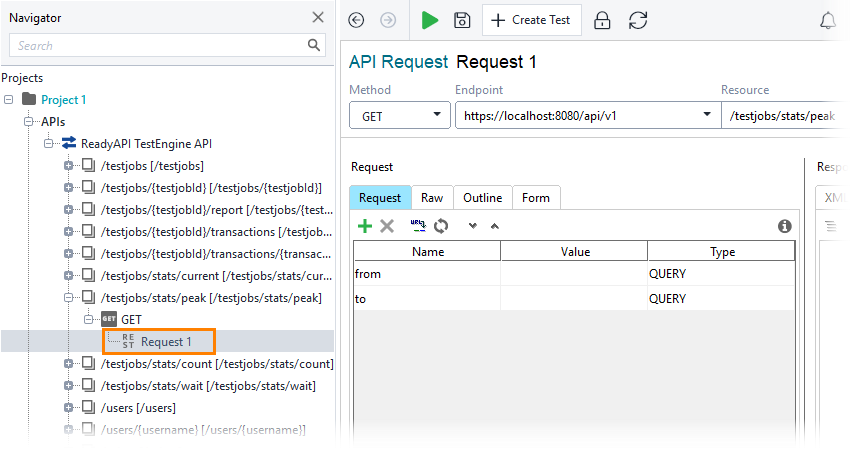
Select the GET request to the /api/v1/testjobs/stats/peak resource:
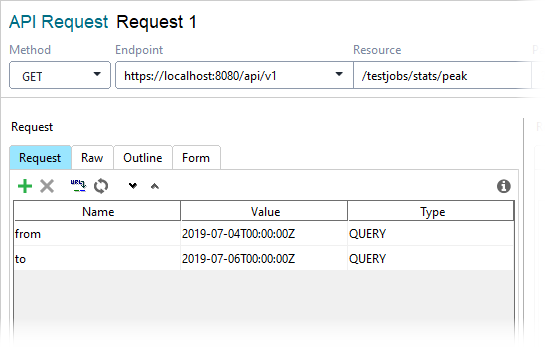
Specify the time frame for which you want to get the Audit Log:
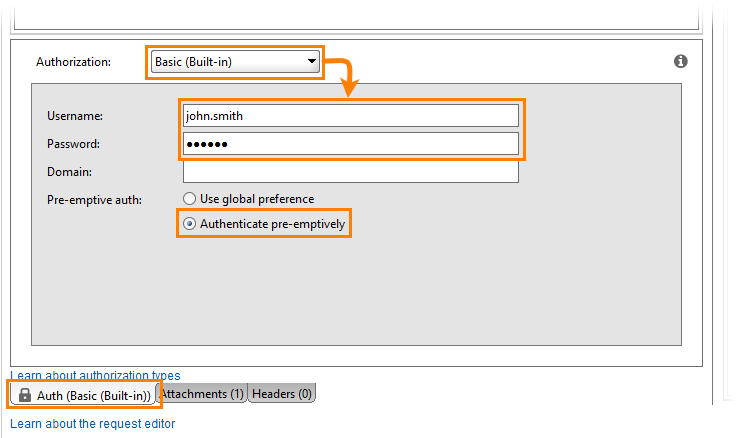
Open the Auth panel.
Select the Basic (Built-in) authorization type.
Tip
If you use the same credentials in several requests, use authorization profiles.
Specify user credentials and select the Authenticate pre-emptively option:
Send the request:

The response will list the Audit Log entries related to the user for the specified period of time:
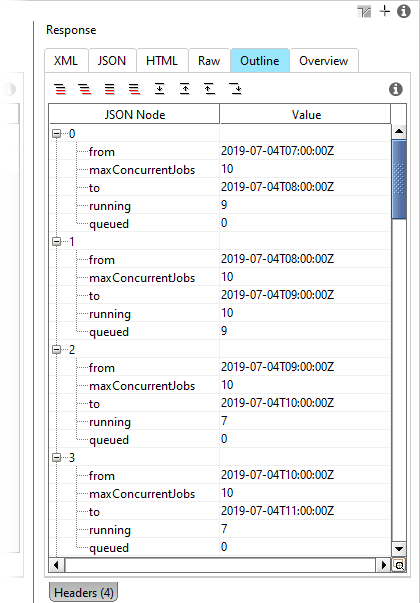
Using Web UI
Go to the home page of TestEngine:
http://<testengine-host>:<port>/
For example, if TestEngine is installed on your local machine, and you run it on the default port, use the following link:
http://localhost:8080/
Go to Statistics:
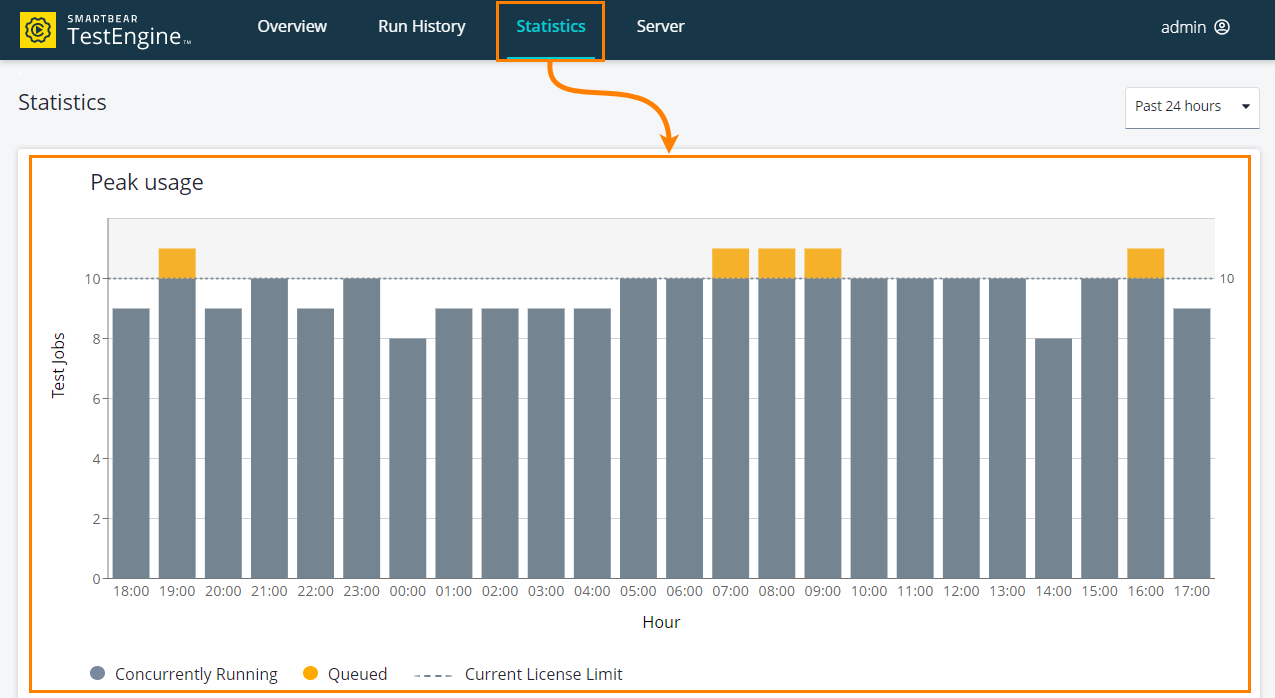
The top graph shows the peak usage statistics for the specified period of time. To select another time period, use the controls in the top-left corner:
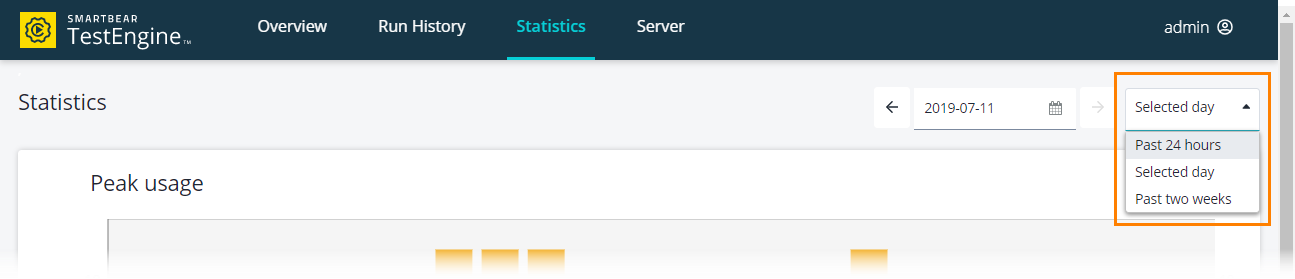 |
Get total usage statistics
The total usage statistics show the total number of running or queued test jobs for the specified period of time.
Using API
Use the following operation:
GET http://<testengine-host>:8080/api/v1/testjobs/stats/count[?from=date][&to=date]Create a project by using the TestEngine API definition. See Creating Project From OpenAPI/Swagger Definition to learn how to do that.
Tip
You can also create the needed request from scratch.
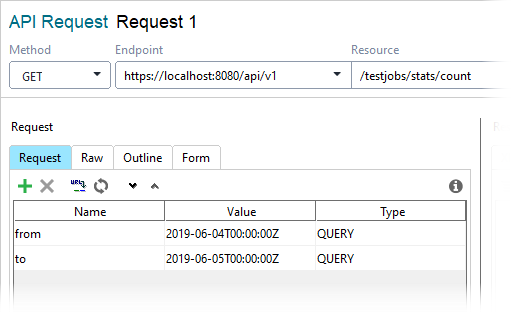
Select the GET request to the /api/v1/testjobs/stats/count resource:
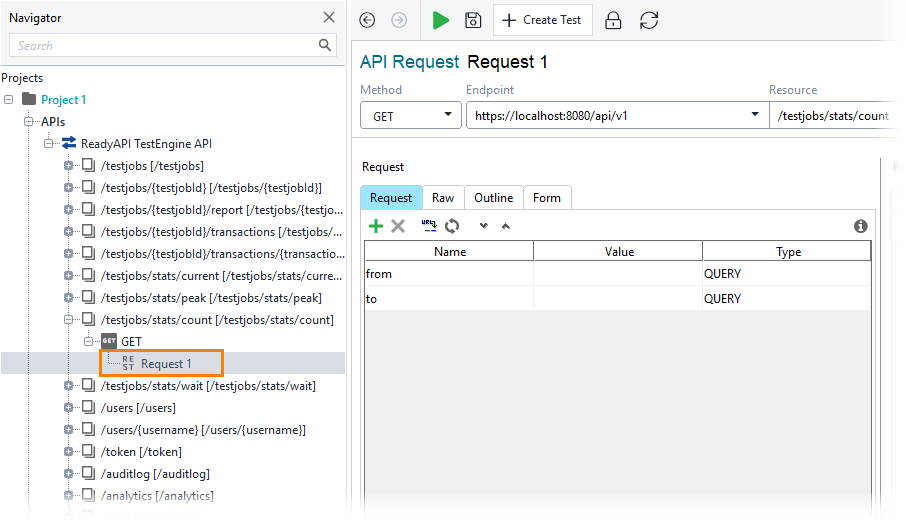
Specify the time frame for which you want to get the statistics:
Open the Auth panel.
Select the Basic (Built-in) authorization type.
Tip
If you use the same credentials in several requests, use authorization profiles.
Specify user credentials and select the Authenticate pre-emptively option:
Send the request:

The response will show statistics for the specified period of time grouped by hours:
Using Web UI
Go to the home page of TestEngine:
http://<testengine-host>:<port>/
For example, if TestEngine is installed on your local machine and you run it on the default port, use the following link:
http://localhost:8080/
Go to Statistics:
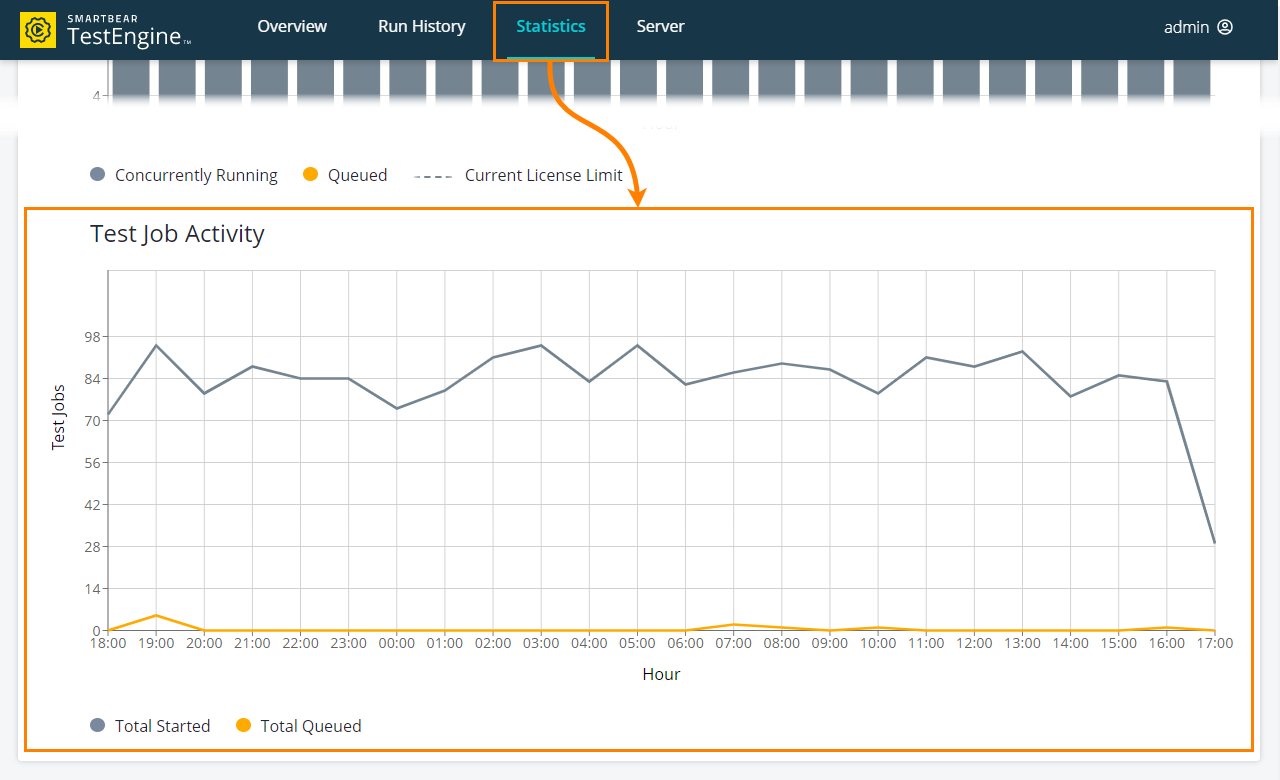
The bottom graph shows the total number of the run and queued test jobs for the specified period of time. To select another time period, use the controls in the top-left corner:
|
Get current usage
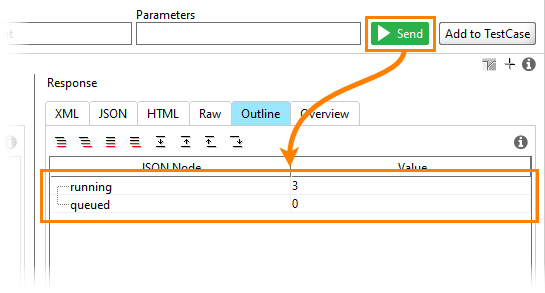
To learn how many tests are running or in a queue at the moment, do the following:
GET http://<testengine-host>:8080/api/v1/testjobs/stats/currentCreate a project by using the TestEngine API definition. See Creating Project From OpenAPI/Swagger Definition to learn how to do that.
Tip
You can also create the needed request from scratch.
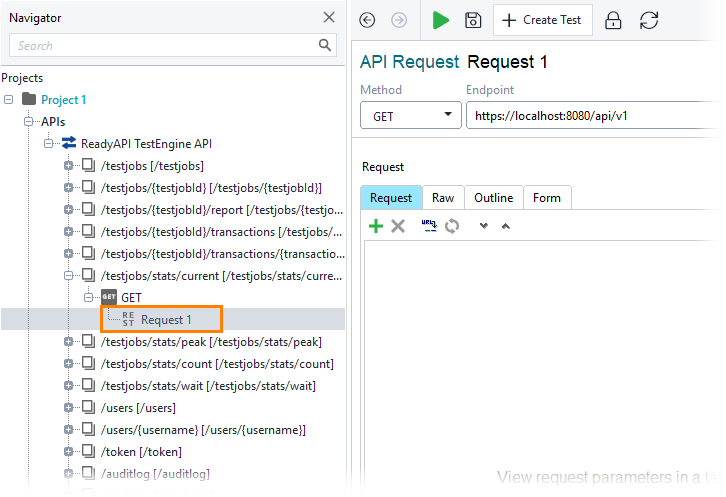
Select the GET request to the /api/v1/testjobs/stats/current resource:
Open the Auth panel.
Select the Basic (Built-in) authorization type.
Tip
If you use the same credentials in several requests, use authorization profiles.
Specify user credentials and select the Authenticate pre-emptively option:
Send the request and analyze the response:
Get waiting time
To get information on how long test jobs were in a queue (in milliseconds), run the following command:
GET http://<testengine-host>:8080/api/v1/testjobs/stats/wait[?from=date][&to=date]Create a project by using the TestEngine API definition. See Creating Project From OpenAPI/Swagger Definition to learn how to do that.
Tip
You can also create the needed request from scratch.
Select the GET request to the /api/v1/testjobs/stats/wait resource:
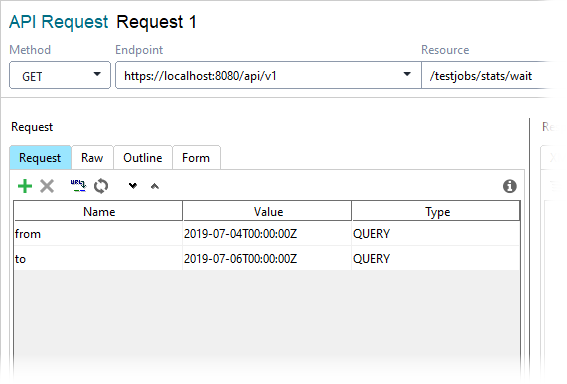
Specify the time frame for which you want the waiting time to be calculated:
Open the Auth panel.
Select the Basic (Built-in) authorization type.
Tip
If you use the same credentials in several requests, use authorization profiles.
Specify user credentials and select the Authenticate pre-emptively option:
Send the request:
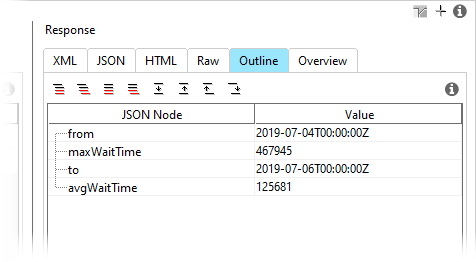
The response will show the maximum and average waiting time of test jobs for the specified time frame: